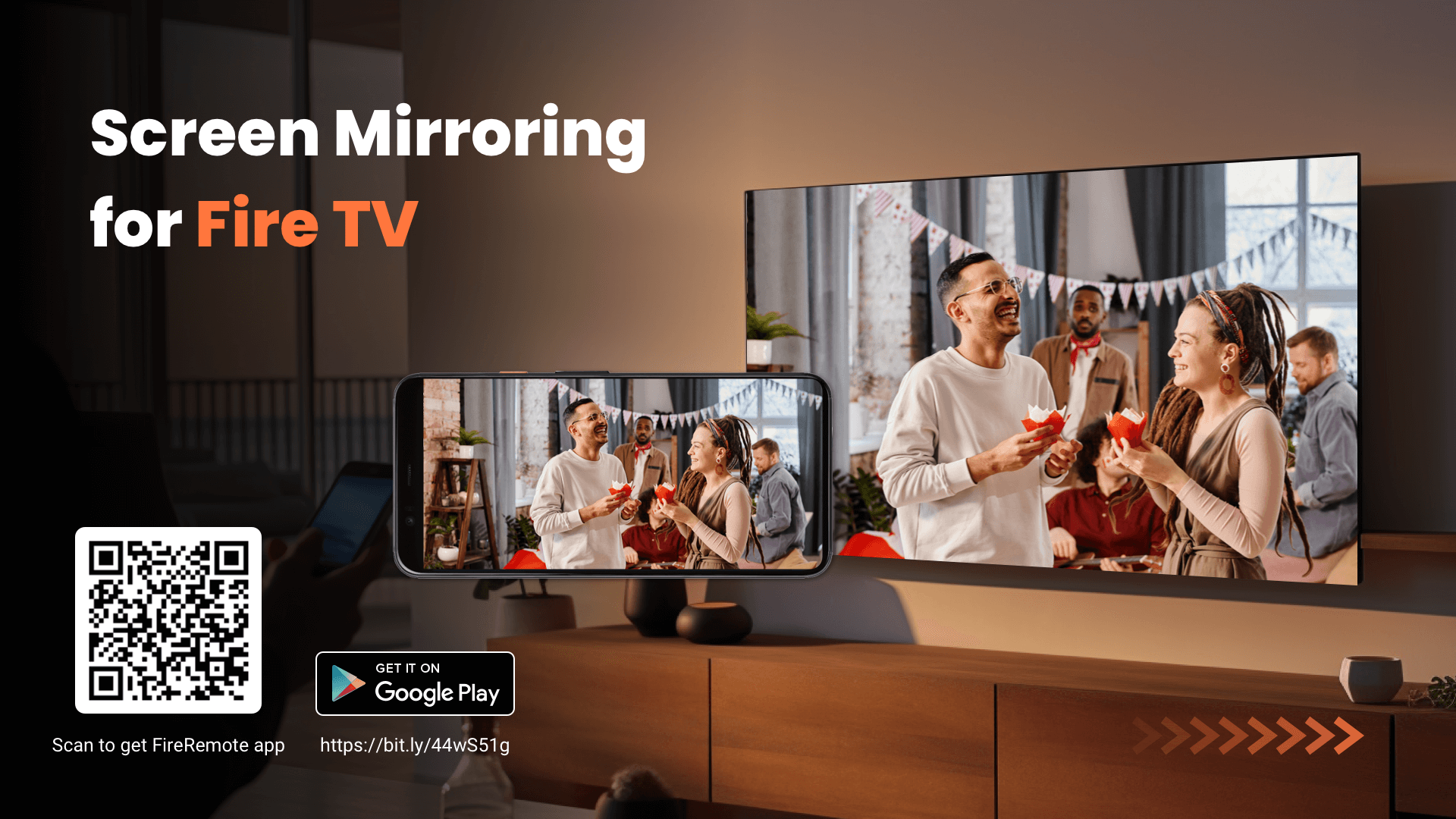
The Fire TV Stick is a popular streaming device that enables users to access a wide range of content from various platforms. One of its standout features is the ability to mirror content from smartphones, tablets, and computers. However, users often encounter issues when attempting to mirror their devices to the Fire TV Stick. This article aims to provide a comprehensive guide to troubleshooting common mirroring issues, ensuring a seamless streaming experience.
Understanding Device Mirroring
Device mirroring, also known as screen mirroring or casting, allows users to display content from their devices on a larger screen. The Fire TV Stick supports mirroring from devices using technologies such as Miracast and AirPlay, making it versatile for both Android and iOS users.
Common Mirroring Issues
While mirroring is generally straightforward, various factors can lead to problems. Below are some of the most common issues users face:
- Connection Problems: Difficulty connecting the device to the Fire TV Stick.
- Lag and Buffering: Slow response times or interruptions during streaming.
- Audio Issues: Sound not syncing with the video or no audio output.
- Quality Degradation: Reduced video quality during mirroring.
- Incompatibility: Some devices may not support mirroring features.
Step-by-Step Troubleshooting Guide

1. Checking Device Compatibility

Before diving into troubleshooting, it’s essential to ensure that both your Fire TV Stick and the device you wish to mirror are compatible. Here’s how:
- Fire TV Stick Models: Make sure your Fire TV Stick is a model that supports screen mirroring (most recent models do).
- Device Specifications: Check if your smartphone, tablet, or computer supports Miracast or AirPlay.
2. Ensuring Proper Network Connection

For successful mirroring, both the Fire TV Stick and the device must be connected to the same Wi-Fi network. Follow these steps:
- Check Wi-Fi Connectivity: Ensure both devices are connected to the same network. Go to Settings on the Fire TV Stick and verify the network status.
- Restart the Router: If issues persist, try restarting your router to refresh the connection.
3. Restarting Devices
A simple restart can often resolve various connectivity issues. Here’s how to do it:
- Restart Fire TV Stick: Unplug the device from the power source, wait for a minute, and plug it back in.
- Restart Your Device: Whether it’s a smartphone, tablet, or computer, restart it to clear any temporary glitches.
4. Enabling Screen Mirroring
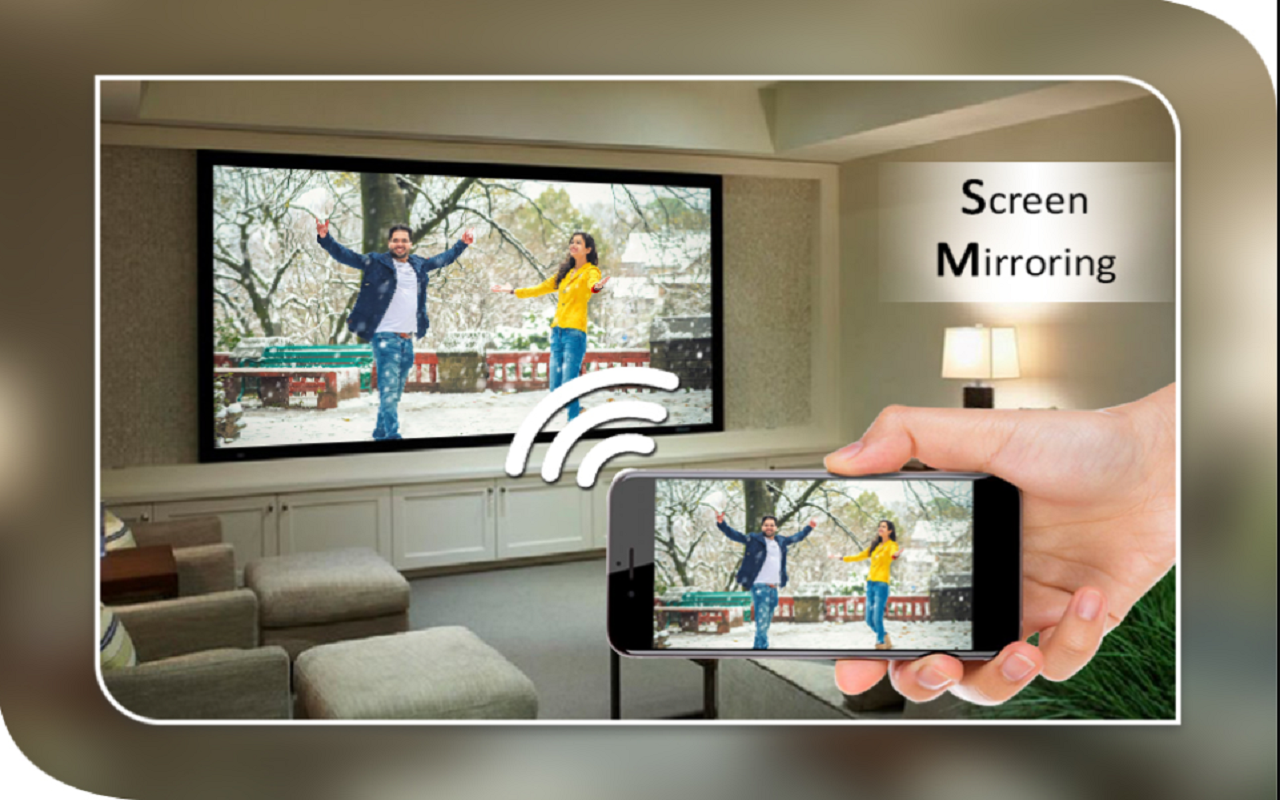
Sometimes, users forget to enable the mirroring feature on their devices. Here’s how to ensure it’s activated:
- On Android Devices: Navigate to Settings > Connected devices > Connection preferences > Cast. Select your Fire TV Stick from the list.
- On iOS Devices: Swipe down from the upper-right corner to access the Control Center, tap on Screen Mirroring, and select your Fire TV Stick.
5. Adjusting Display Settings
If you are experiencing lag or quality issues, adjusting your display settings on both devices may help:
- Resolution Settings: Lower the resolution on your device. High resolutions can cause lag during mirroring.
- Display Scaling: Ensure that display scaling settings on your device are set to default.
6. Addressing Audio Issues
If you encounter audio issues during mirroring, consider the following steps:
- Check Volume Levels: Ensure that the volume is turned up on both your Fire TV Stick and the mirroring device.
- Audio Output Settings: On some devices, you may need to select the Fire TV Stick as the output audio source.
7. Updating Software
Running outdated software can lead to compatibility issues. Here’s how to update:
- Fire TV Stick: Go to Settings > My Fire TV > About > Check for Updates.
- Device Software: Ensure that your smartphone or tablet is running the latest operating system version.
Case Studies and User Experiences
To further illustrate the troubleshooting process, consider the following user experiences:
- User A: Faced issues mirroring their Android device to the Fire TV Stick. By adjusting the resolution settings and ensuring both devices were connected to the same Wi-Fi network, they successfully resolved the problem.
- User B: Experienced audio lag while mirroring movies. After checking volume levels and updating the Fire TV Stick software, the problem was rectified.
Statistics and Insights
According to a recent survey, approximately 30% of users experience connectivity issues when trying to mirror their devices. Understanding the common troubleshooting steps can significantly enhance user satisfaction and reduce frustration. Moreover, a study indicated that 80% of streaming problems could be resolved by simply ensuring both devices are on the same network.
Final Thoughts
Mirroring to a Fire TV Stick can enhance your entertainment experience by allowing you to display content on a larger screen. However, common issues may arise that can disrupt this seamless experience. By following the troubleshooting steps outlined in this article, you can effectively address most problems and enjoy hassle-free mirroring.
In summary, ensure device compatibility, maintain a stable network connection, restart your devices, enable mirroring features, adjust display settings, address audio issues, and keep your software updated. With these strategies in hand, you can maximize the functionality of your Fire TV Stick and enjoy your favorite content without interruptions.